6 AI Tools for Teachers Who Love Designing Choice Boards
If you’re the kind of teacher whose happiest lessons unfold as “pick your learning path,” who sketches out choice menus by hand, or who’s constantly tweaking project options so every student can shine, you know the joy (and the pain): True autonomy means planning, adapting, and tracking a thousand moving pieces. I started as a menu fanatic in ELA—later, I brought project grids and self-directed stations to science, social studies, even advisory. But no one tells you how hard it gets to keep everything genuinely accessible, rigorous, and… fresh.
This year, I set out to find AI tools that actively supercharge learner choice—not as a digital worksheet factory, but as a toolkit so I could say “yes!” to new options without collapsing under the prep. These six (with honest caveats, and a few creative hacks) became my go-to stack for every pick-your-project week, Genius Hour, or independent study block. Kuraplan is in here—but never the main event, I promise!
1. Diffit — Barrier-Busting for Any Resource, Any Level
Choice boards die when only a third of your class can access that NYT opinion piece or viral video transcript. With Diffit, I start option-building backward: every time I or a student finds a compelling source, I plug it in and get multiple leveled versions (plus vocab and questions) in seconds. Now, my menus actually serve every reader. I even pass Diffit’s tool to students after our "menu pitch day"—they remix a news article, podcast, or even song lyrics for their group, and suddenly, the “kickoff reading” is always within reach. It’s one click away from true equity, not just a menu of impossible text.
Try Diffit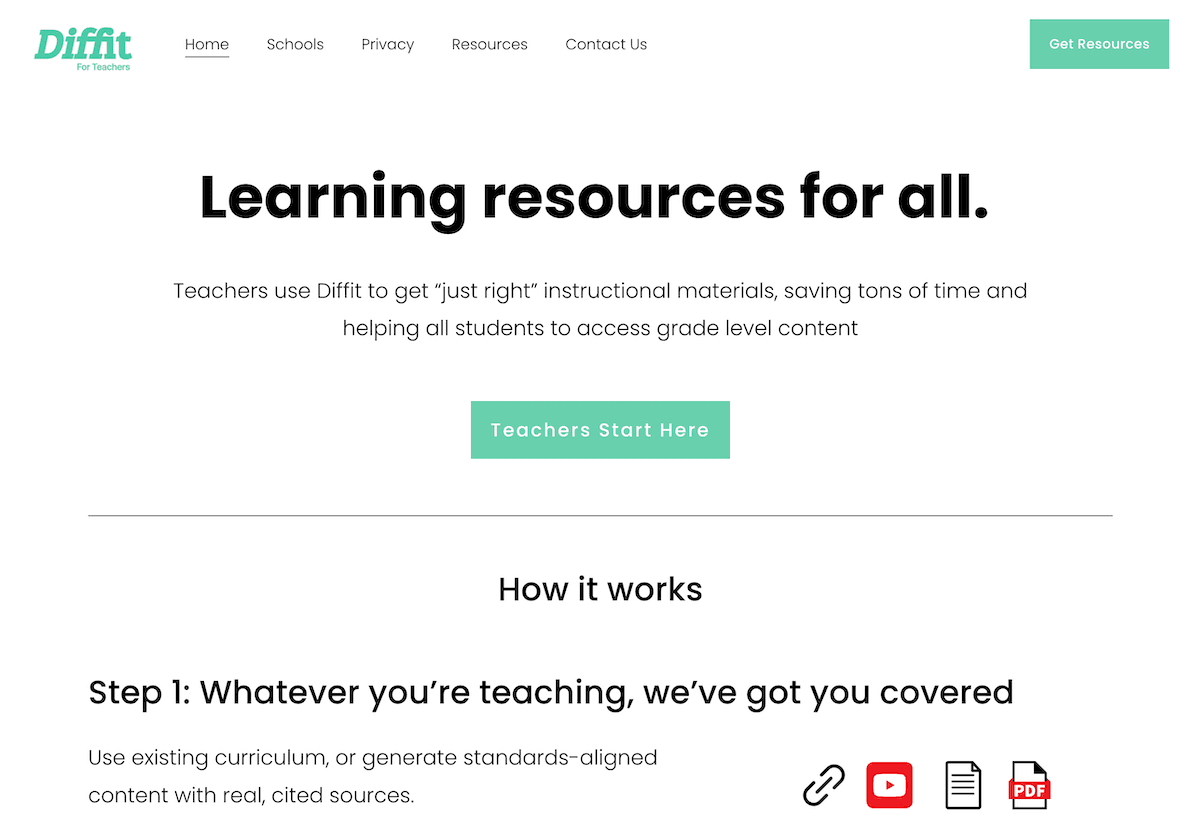
2. Kuraplan — Dynamic Maps When Boards Go Off the Rails
Let’s be honest: real learner autonomy means groups take off in wild directions—or someone pivots in week two. Kuraplan is the best “plan B” I’ve found: after Choice Board Launch, I invite students to co-edit our unit backbone in Kuraplan—adding their own projects, deadlines, or checkpoints, then scrapping (or negotiating) sections that no longer fit. We treat it like a living map that adapts as new proposals appear—but always keeps the guardrails clear enough for admin, and gives parents an outline for at-home support. My workflow: review and adjust the roadmap every Friday, never once feeling boxed in by my own menu design.
Try Kuraplan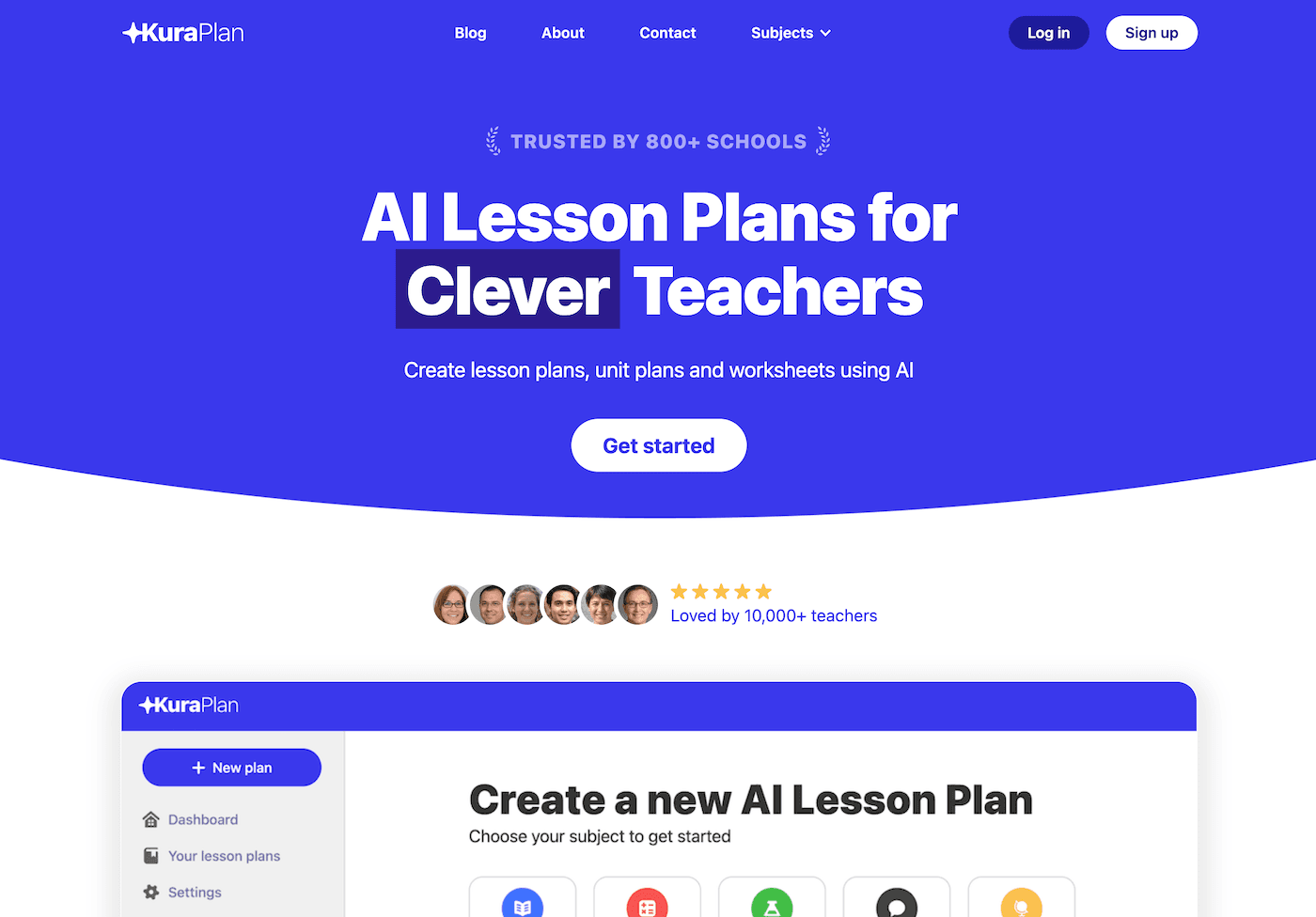
3. Jungle — Student-Authored Menus for Review and Extension
The real genius of Jungle? I let students create Cards (with questions, challenges, or even silly tasks) tied to the week’s learning grid. Then, Jungle auto-generates decks for menu-style review days ("You must complete 3 cards in a row, your way!"). We use them as self-paced centers or peer challenges, and the decks never look the same twice. Students take pride in crafting “trap” questions or wild research prompts—the best, I save for next year’s onboarding menu. It’s a home-grown option pool, with just enough randomness to keep review feel like discovery, not drill.
Try Jungle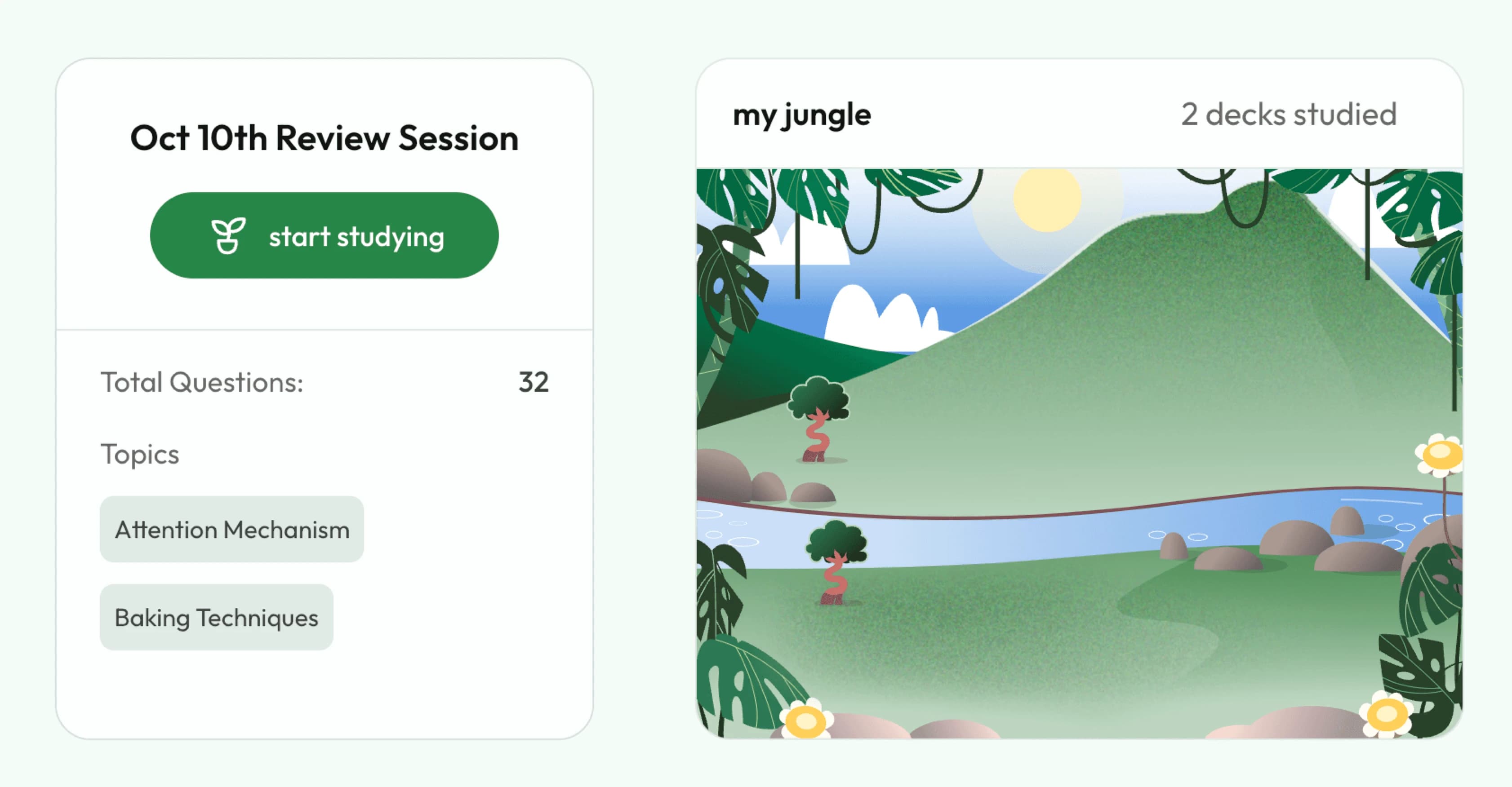
4. Magicbook — Publishing Menus as Choice-Driven Showcases
Choice boards often die in the “project graveyard”—work gets done, then shoved in folders. My breakthrough: use Magicbook for end-of-choice-board showcases. Students pick a project (memoir, how-to, science mystery, etc.), Magicbook turns it into a real illustrated picture book or explainer, and we host a publishing fair. The best move? Let students choose where to publish: send home to caregivers, add to the class library, or document field trips. Suddenly, the choice isn’t just what you make, but where it matters. I have every advisory or challenge group build at least one Magicbook product per menu cycle.
Try Magicbook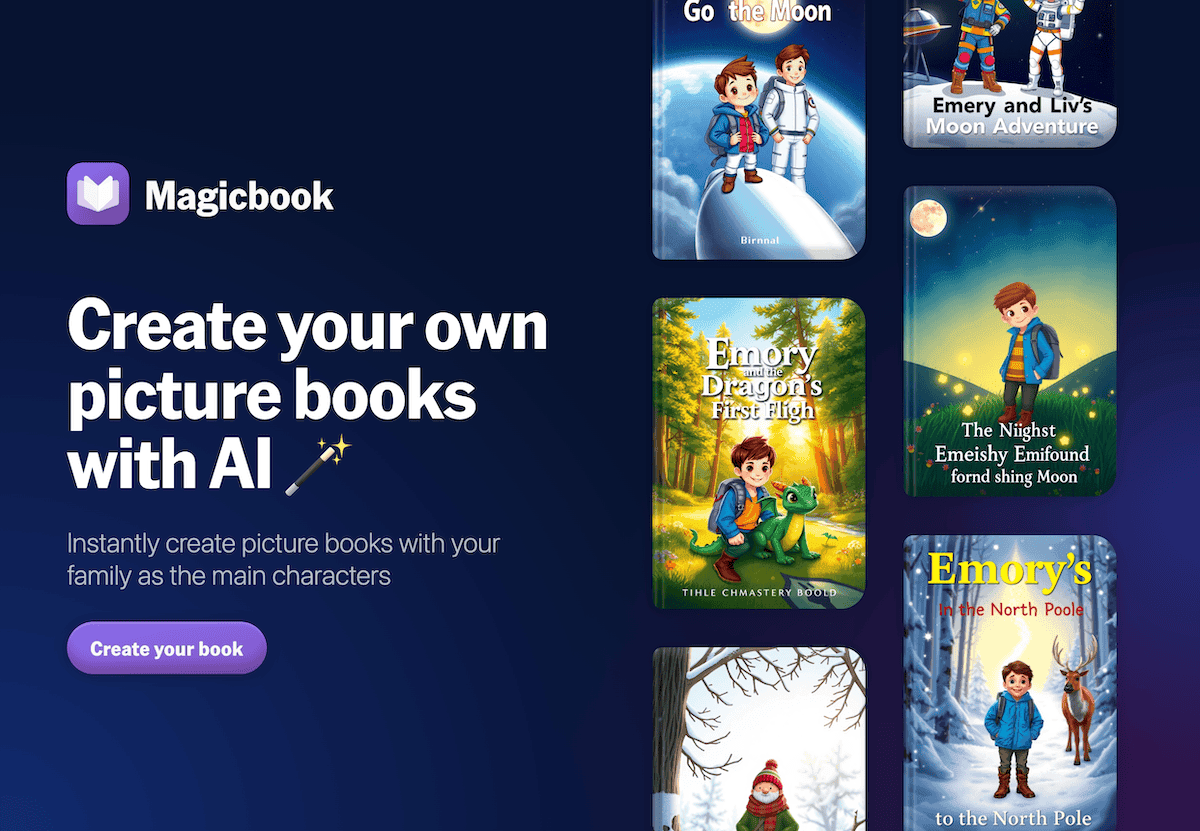
5. Gamma — Making Menus Visual and Interactive (No Design Degree Required)
A whiteboard menu is great until chaos sets in. Gamma lets me turn my hand-drawn grids or Google Doc tables into gorgeous, clickable choice boards—where each project, center, or pathway has images, links, and (best part) live progress tracking. Students mark off what they’ve finished, leave sticky-note questions, and I share a “menu gallery” at the end for class reflection. It’s also become the backbone for student self-conferences—students use their Gamma tracker to narrate their journey (“Here’s what I picked, what I’d do differently, and Mom can see my learning plan too.”)
Try Gamma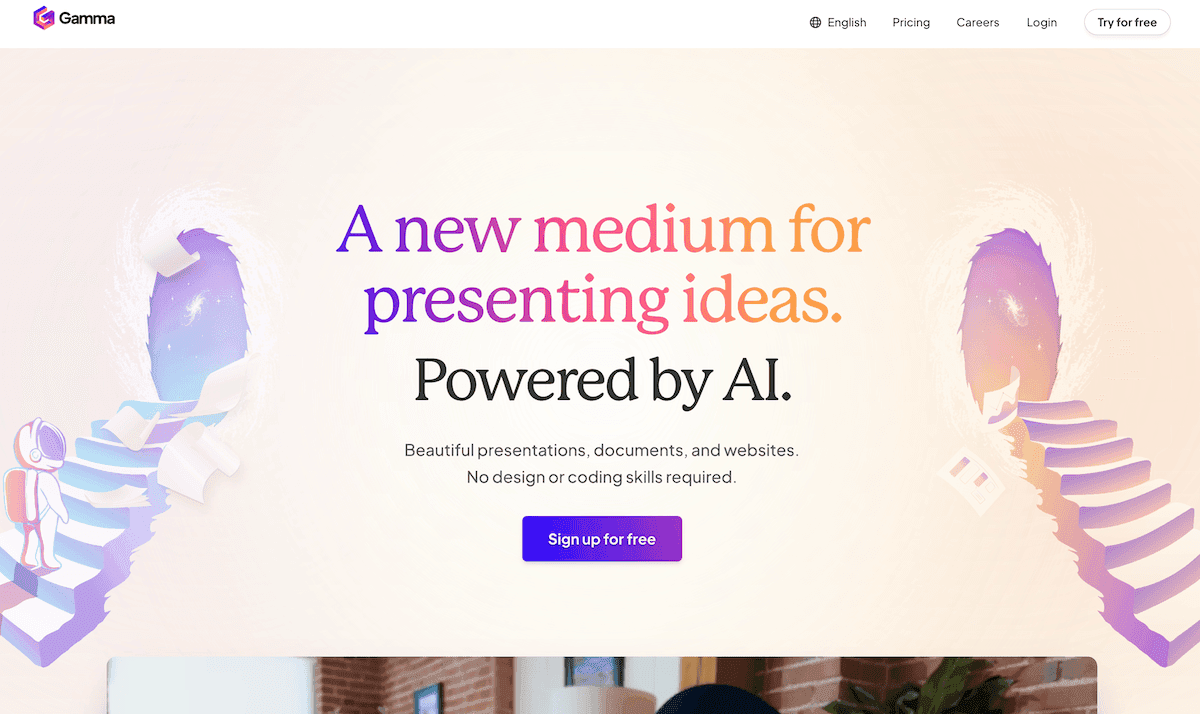
6. Suno AI — Ritualizing Choice and Celebration (Your Way)
Classroom culture keeps choice alive. Every menu cycle, my class writes a Suno prompt for the “Launch Day Anthem” or the “We Finished Our Menus!” song. Suno generates a custom track for each group—used as a reset, a reflection, or even a closing reward. Students compete to write the silliest parody or the most heartfelt post-project cheer. The best Suno prompts move into our permanent "menu tradition" playlist. This tiny ritual has built a sense of adventure (and closure!) into every project menu, and even my least musical students jump in.
Try Suno AI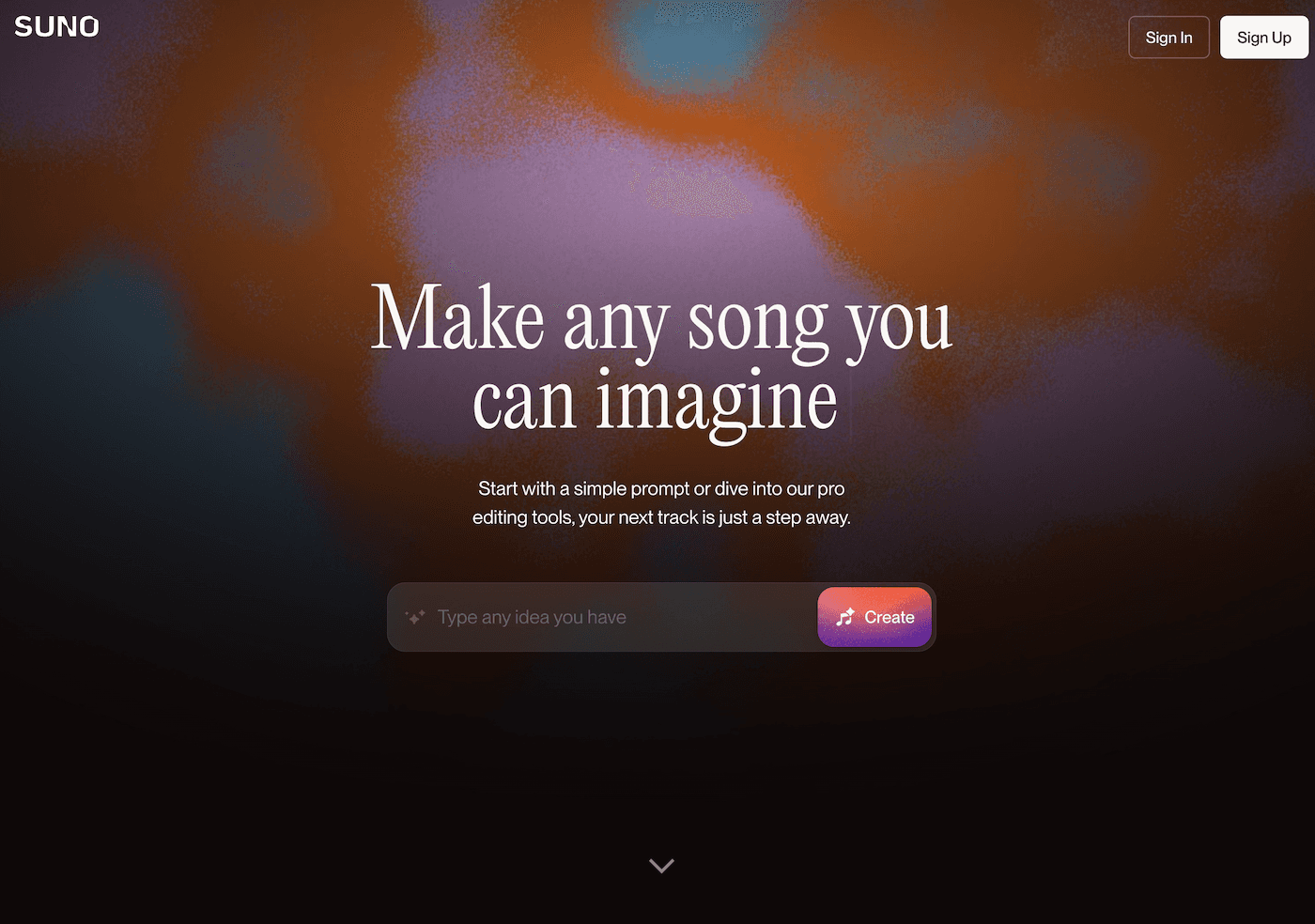
Tips for Choice-Board Masters (Or Newbies!):
- Use AI to scaffold, not shortcut: Build in options that invite the imagination, but support all levels, groups, and wildcards.
- Let students co-author menus: Whether pitching projects in Jungle, editing in Kuraplan, or designing showcase books in Magicbook, ownership is the best motivator.
- Archive “greatest hit” pathways: Save last year’s bravest selections—use Gamma slides or Magicbook products as the next group’s inspiration shelf.
- Make culture, not just menus: Suno anthems and end-of-cycle reflection rituals celebrate the real work of finding your own way.
If you’re a teacher who treats every menu as a map—what’s your newest workflow, AI hack, or “off-menu” win? Drop your stories, gallery links, or best menu questions below. In 2025, the best board is one you help your students design—and the right tech will let you do it without losing yourself.